Change your address in IBKR
How to update the residential address on your Interactive Brokers profile, step by step.
Updated 31 August 2026
Your residential address is held on your Interactive Brokers (IBKR) profile, so you update it in the IBKR Client Portal. The steps below take a few minutes.
Have your proof of address ready
IBKR may ask you to verify the change, so have a copy of a proof of address showing the new address ready before you start.
1. Open Settings
Once you’re logged in to the Client Portal, click the person icon in the top-right corner, then select Settings.
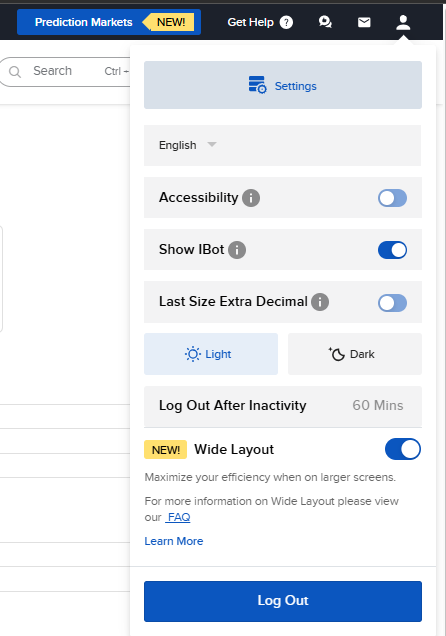
Click the person icon in the top-right corner, then select Settings.
2. Open Profile Information
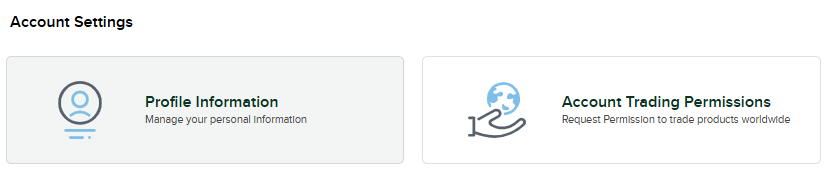
Under Account Settings, click Profile Information.
3. Click the pencil icon
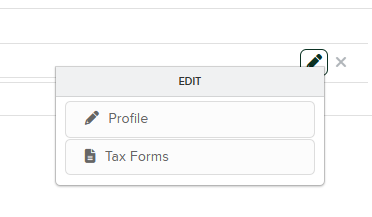
On the Profile Information page, click the pencil icon on the right to edit your details.

4. Select Profile
In the menu that opens, select Profile.
5. Update your residential address
Scroll down to Residential Address, then enter the address details you’d like to use.
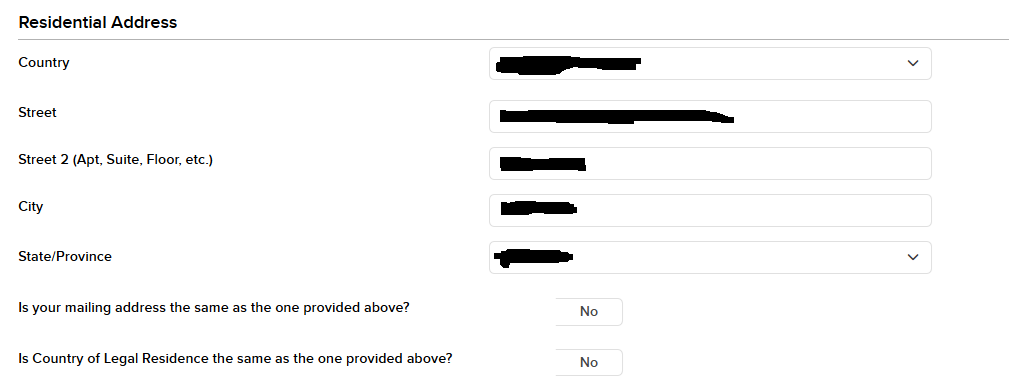
Enter your new address details under Residential Address.
6. Confirm the change
Click Continue and follow the remaining prompts in IBKR. Once you’re done, you’ll receive an email confirming that your information has been updated.