Delink your account from Vault
How to delink your account from Vault in the IBKR Client Portal.
Updated 16 June 2026
If you need to remove the link between your IBKR account and Vault, you can do so directly from the IBKR Client Portal in a few steps.
1. Open the user menu
From the IBKR Client Portal homepage, click the profile / human icon in the top-right corner of the screen.
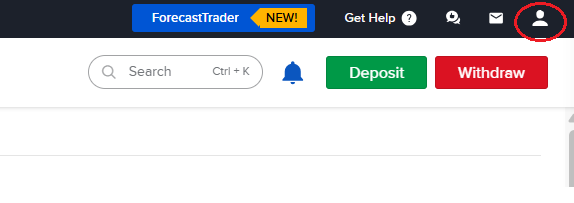
Click the profile icon in the top-right corner to open the user menu.
2. Go to Settings
In the dropdown that appears, click Settings.
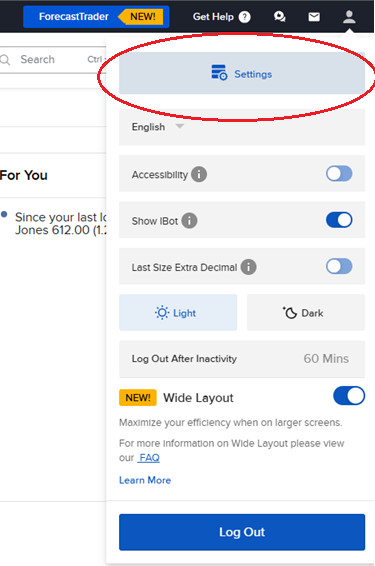
3. Open Manage Account Linking
Under Account Settings, click Manage Account Linking.
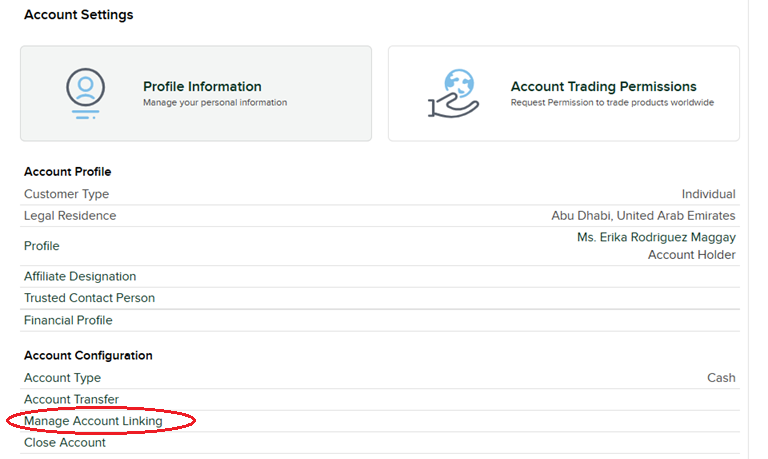
Click Manage Account Linking under Account Configuration.
4. Delink your account
On the next page, select Delink Account and click Continue to complete the process.