Download statements from IBKR
How to download your IBKR statements and set up automatic monthly or daily delivery.
Updated 16 June 2026
From the IBKR Client Portal you can download an activity statement for any date range as a PDF, and optionally configure daily or monthly statements to be sent automatically to your email.
1. Navigate to Statements
After logging in, click Performance & Reports in the top navigation bar, then select Statements.

Click Performance & Reports in the top navigation bar.
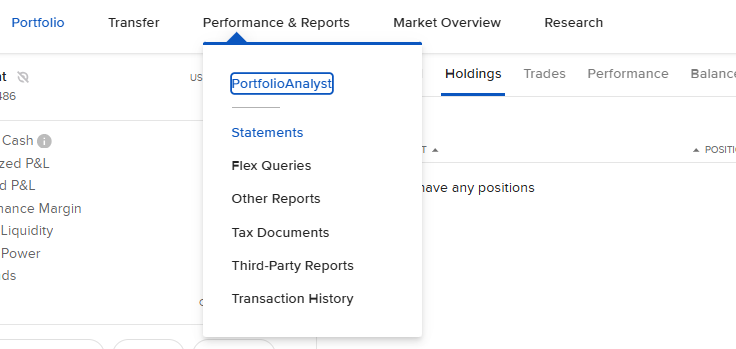
Select Statements from the Performance & Reports dropdown.
2. View the Statements page
You will land on the Statements page. On the left you can download a statement directly; on the right, under Statements Delivery, you can configure automatic email delivery of your monthly or daily statements.
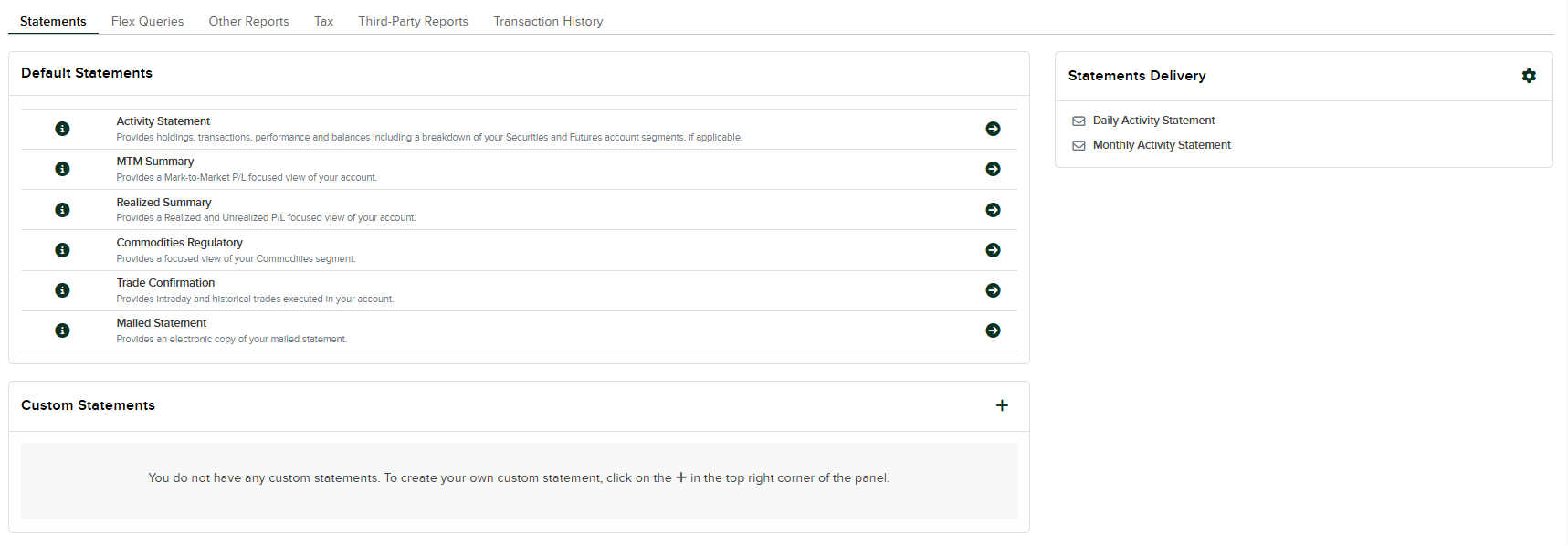
The Statements page: download on the left, configure automatic delivery on the right.
3. Click Activity Statement
Under Default Statements, click the arrow next to Activity Statement.
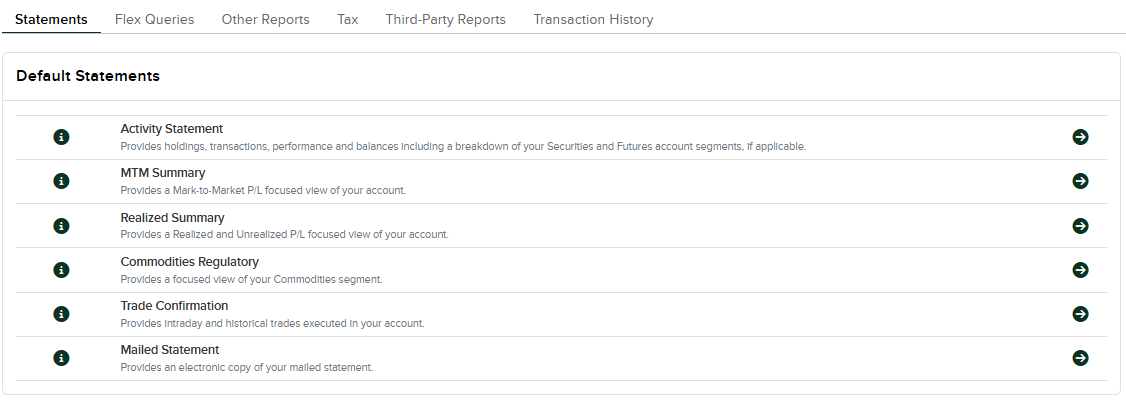
Click the arrow next to Activity Statement to open the download options.
4. Choose your date range and download
In the Activity Statement panel, choose the Period (Daily, Custom Date Range, Monthly, Month to Date, or Year to Date) and set your desired date. Then click Download PDF.
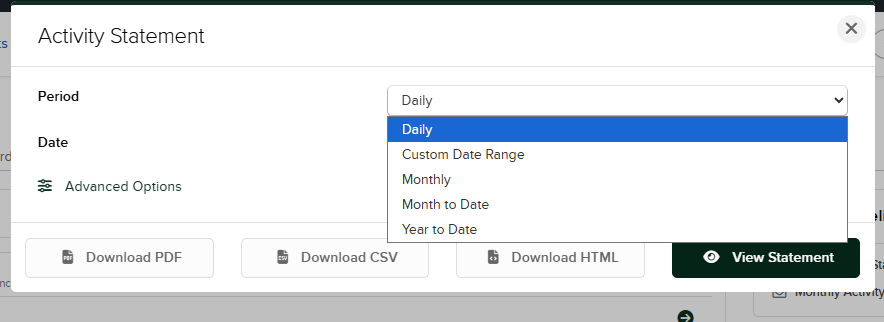
Set up automatic delivery (optional)
IBKR can automatically email your daily or monthly activity statements. To configure this, return to the Statements page.
1. Open Statements Delivery
On the right side of the Statements page, locate the Statements Delivery panel and click Configure.
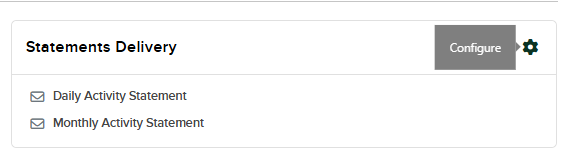
2. Open the Default Statements Delivery settings
You will be taken to the Statements Delivery page. In the Default Statements Delivery section, click the Configure button to customise your delivery preferences.

Click Configure in the Default Statements Delivery section.
3. Set your delivery preferences and continue
For each statement type — Daily Activity Statement, Monthly Activity Statement, and Daily Trade Report — choose your preferred delivery method from the dropdown: Email with Attachment, Email, Message Center, or Disable. Click Continue when done.
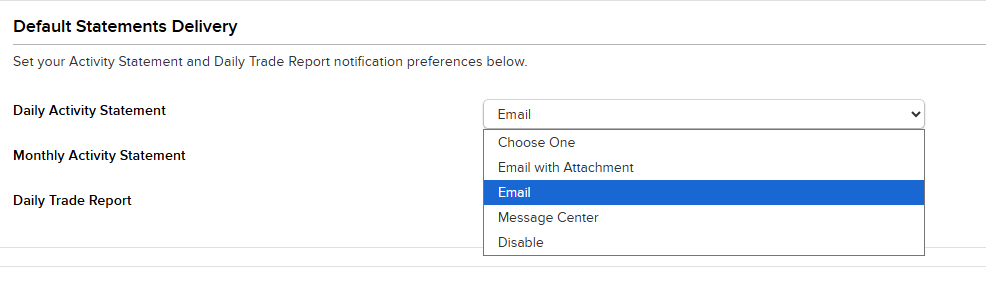
Choose a delivery method for each statement type, then click Continue.