Fund your Vault wallet
How to deposit money into your Vault wallet from the app, including the payment reference to include.
Updated 16 June 2026
Use the Vault app to deposit funds into your wallet. The steps below take a few minutes to complete.
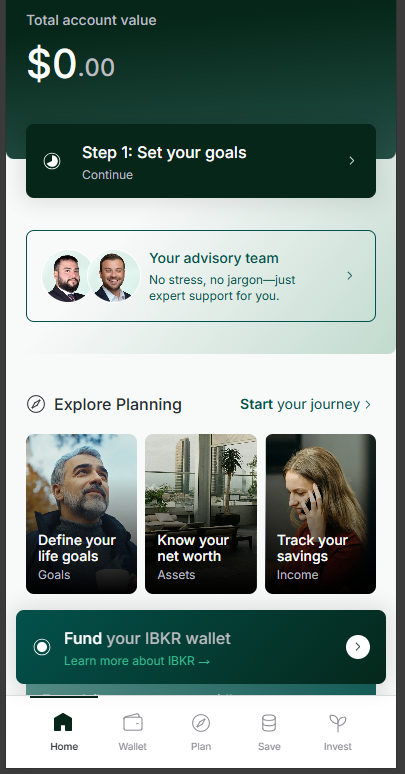
1. Open your Wallet
After logging in, tap Wallet at the bottom of your screen.
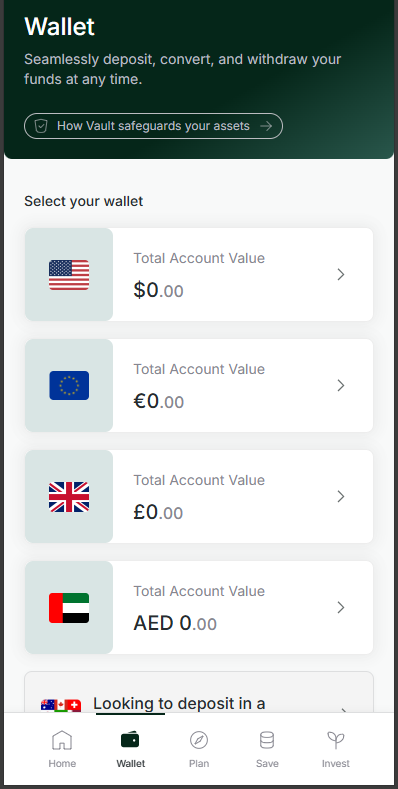
2. Select a currency
You will be taken to your wallet. Select the currency you’d like to deposit into.
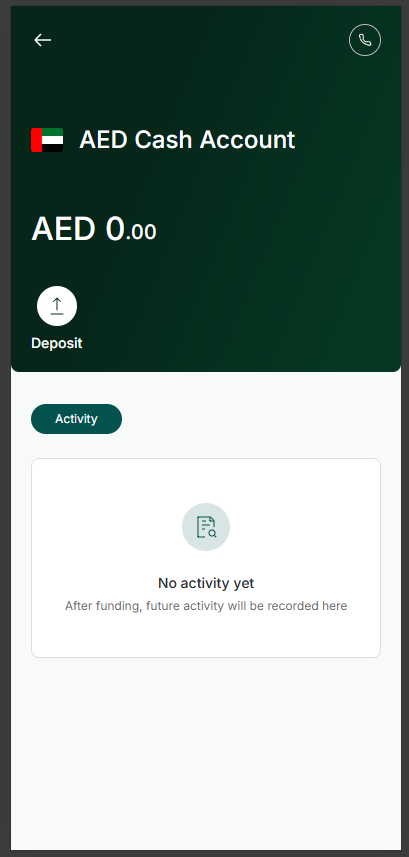
3. Tap Deposit
On the currency account screen, tap Deposit to begin the transfer process.
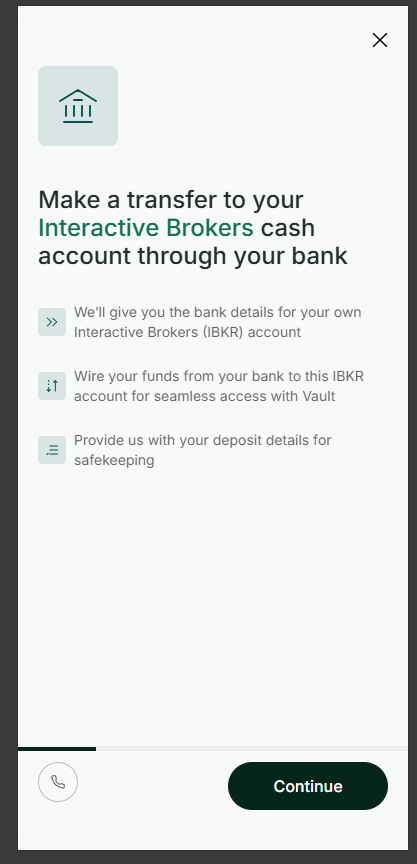
4. Review the transfer instructions and tap Continue
The app will show you how the transfer works. Tap Continue to proceed.
5. Note the payment details and include your payment reference
The app displays the payment details for your transfer. Wire your funds to the account shown.
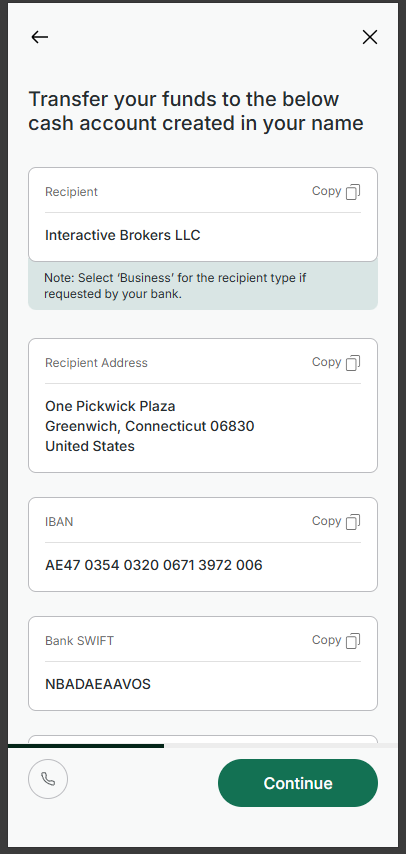
Use these payment details when making your bank transfer.
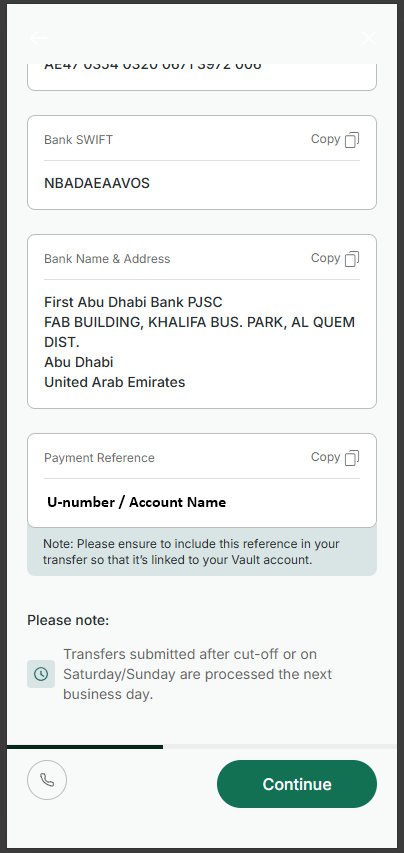
Scroll down to see the Payment Reference — include it on every transfer.
Always include your payment reference
Every time you make a transfer, include your unique payment reference exactly as shown. This is how Vault links the deposit to your account. Transfers submitted after the daily cut-off, or on Saturday or Sunday, are processed the next business day.
6. Notify Vault of your deposit through the app
After making the transfer, you can notify Vault directly through the app. Tap Continue on the Wallet Details page.
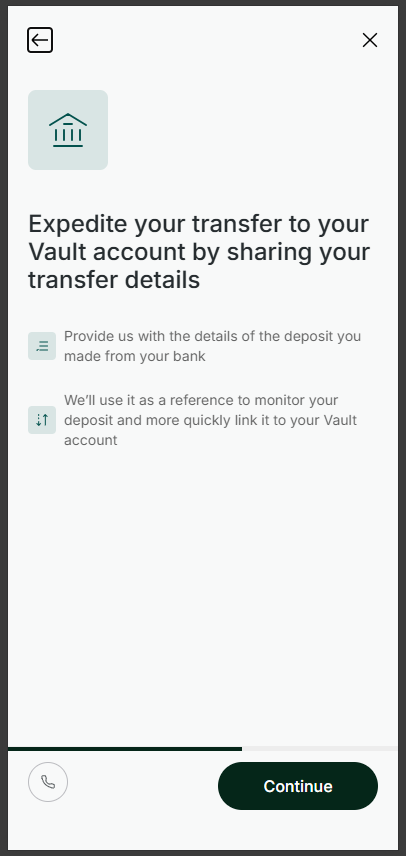
Tap Continue to let Vault know about your deposit — this helps link it to your account faster.
7. Enter your bank details
Enter the details of the bank you sent the transfer from, then tap Submit.
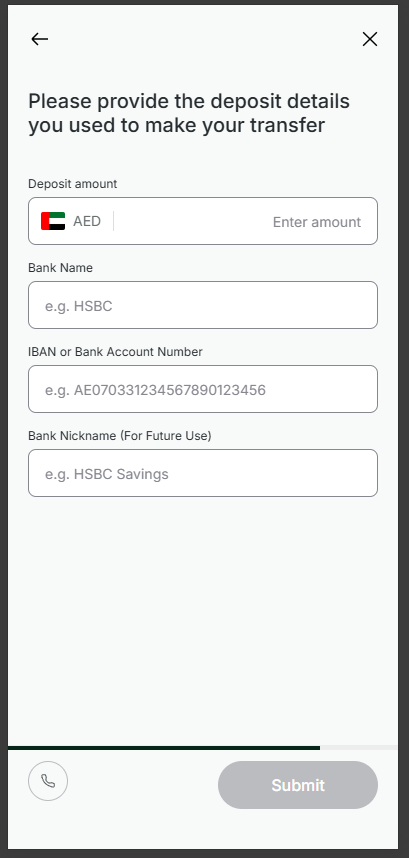
Provide your bank details so Vault can verify and link your transfer more quickly.