Transfer cash between your Vault spaces
How to move cash or a portfolio from one space to another within your Vault account, step by step, from the Vault platform.
Updated 31 August 2026
You can move cash between the spaces inside your Vault account directly from the platform, without a bank transfer. The steps below take a couple of minutes. The same option is available for portfolios, so you can move holdings between your spaces the same way.
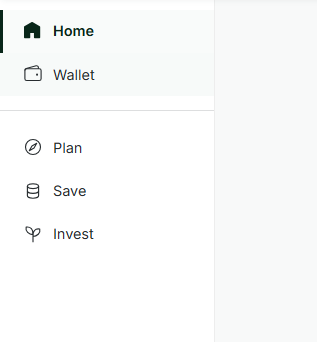
1. Open your Wallet
From the homepage, click Wallet in the left-hand navigation.
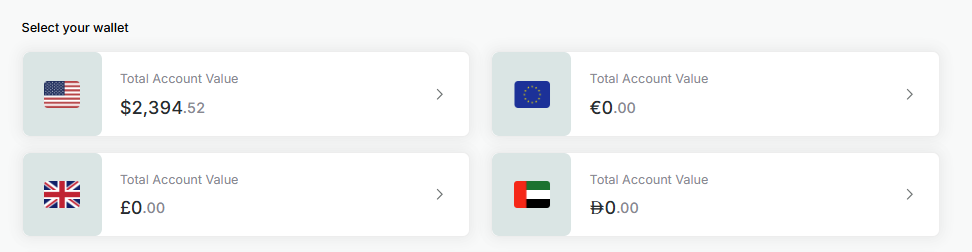
2. Select the currency you want to transfer from
Your wallet lists a cash account for each currency. Select the one you’d like to move funds from.
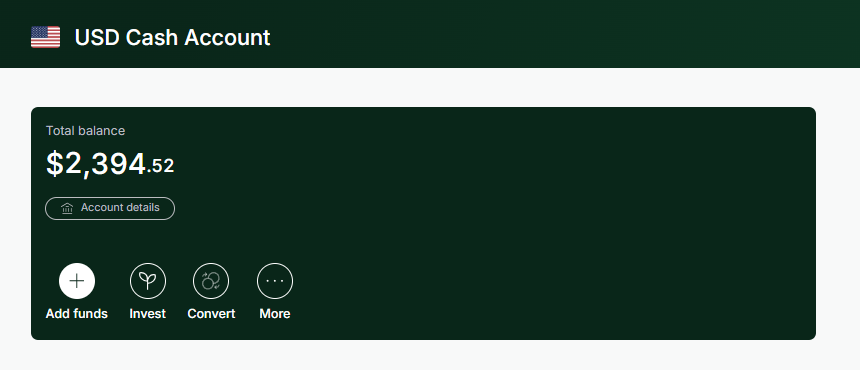
3. Click More
This example uses the USD cash account. On the account screen, click More.
4. Choose Transfer
On the prompt that opens, click Transfer to move funds between your spaces.
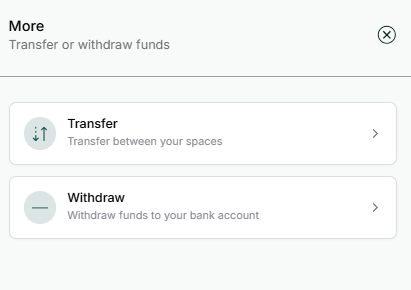
Click Transfer. Withdraw is for sending funds out to your bank account instead.
5. Select the space you’re transferring to
The screen confirms the account you’re transferring from, then asks where the cash should go. Select the destination space.
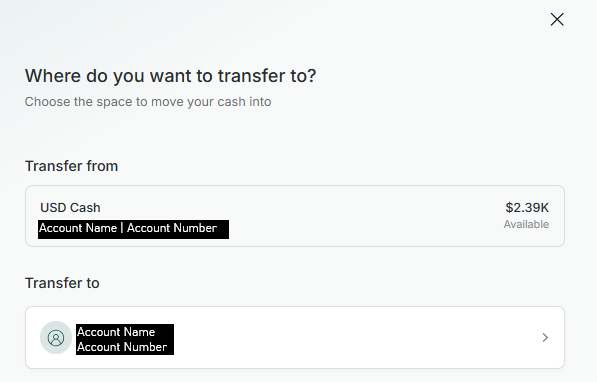
6. Enter the amount
Enter the amount you’d like to transfer. The available balance is shown underneath the field.
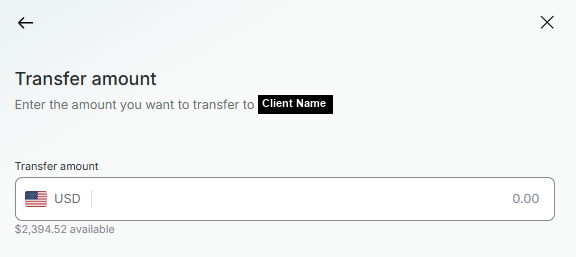
Enter the amount to transfer, up to the available balance shown.
7. Review the details and confirm
Check the currency, amount, and destination account, then click Confirm at the bottom of the page.
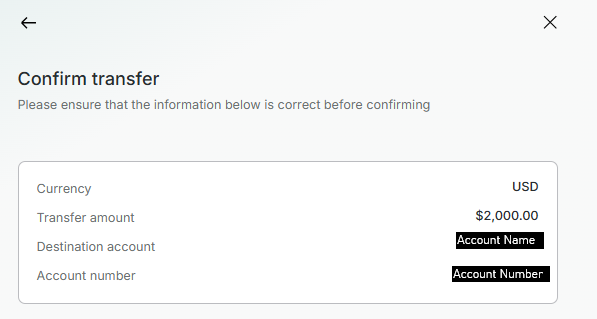
Verify the details before confirming, then click Confirm.
Check the details before you confirm
Make sure the destination account and amount are right before confirming. If something doesn’t look right, ask your advisor before confirming.
Which accounts you can transfer between
Cash and portfolios can only be transferred between accounts in the same household. A transfer from an institutional account to a joint or individual account, for example, isn’t permitted.
IBKR does allow exceptions in certain cases. If you need to move cash or holdings between accounts that sit in different households, speak to your advisor before you start.
How long a transfer takes
| Transfer | Usually completed within |
|---|---|
| Cash | 30 minutes of submitting |
| Portfolio | 1 hour of submitting, while markets are open |