Withdraw funds from IBKR
How to enter a withdrawal from your IBKR account, step by step.
Updated 16 June 2026
The steps below describe how to enter a withdrawal from your Interactive Brokers (IBKR) account for most withdrawal methods.
1. Go to Transfer & Pay
In the IBKR Client Portal, click Transfer & Pay > Transfer Funds. Alternatively, click Menu in the top-left corner, then navigate to Transfer & Pay > Transfer Funds.
2. Select your account (if prompted)
If you have multiple accounts, account partitions, or a master account linked to client or sub-accounts, the Account Selector will open. Select the account you want to use, then click Continue to confirm your selection and close the selector.
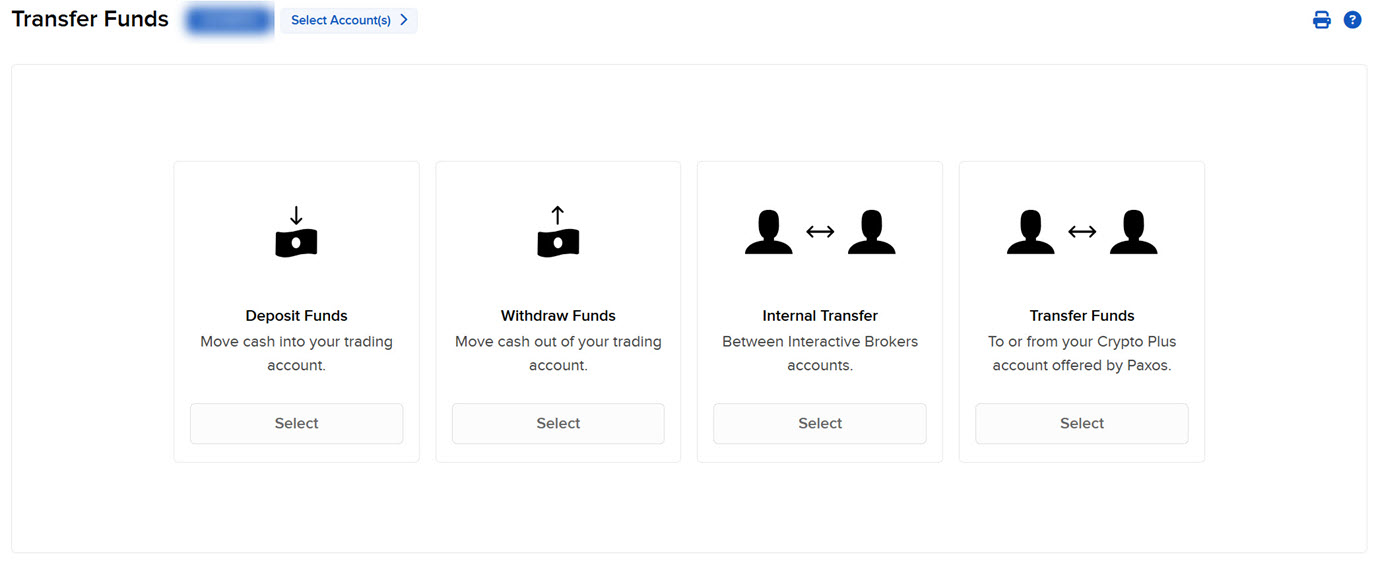
3. Select Withdraw Funds
From the menu options, select Withdraw Funds.
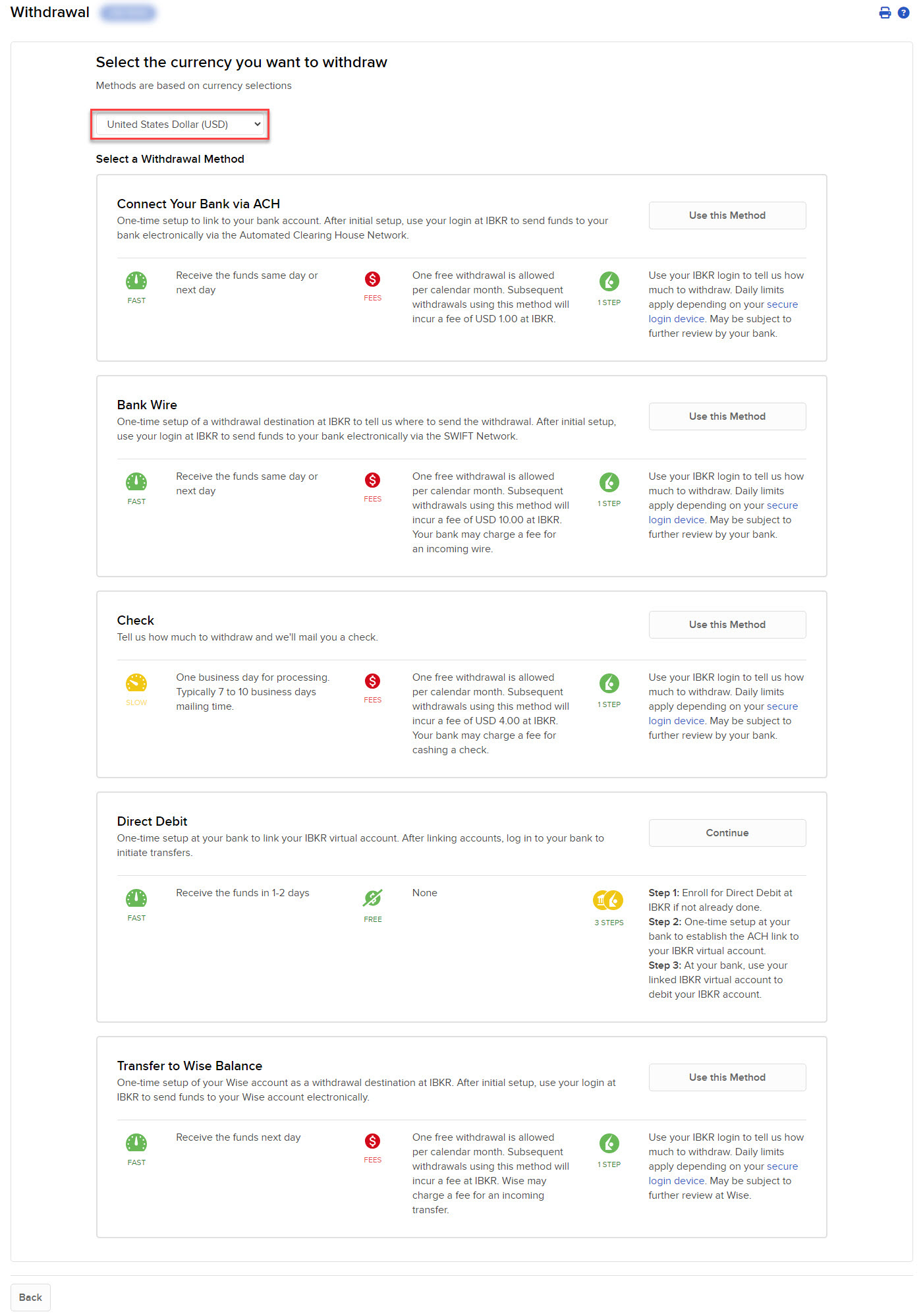
4. Choose your currency
In the Currency list, select the currency of your withdrawal.
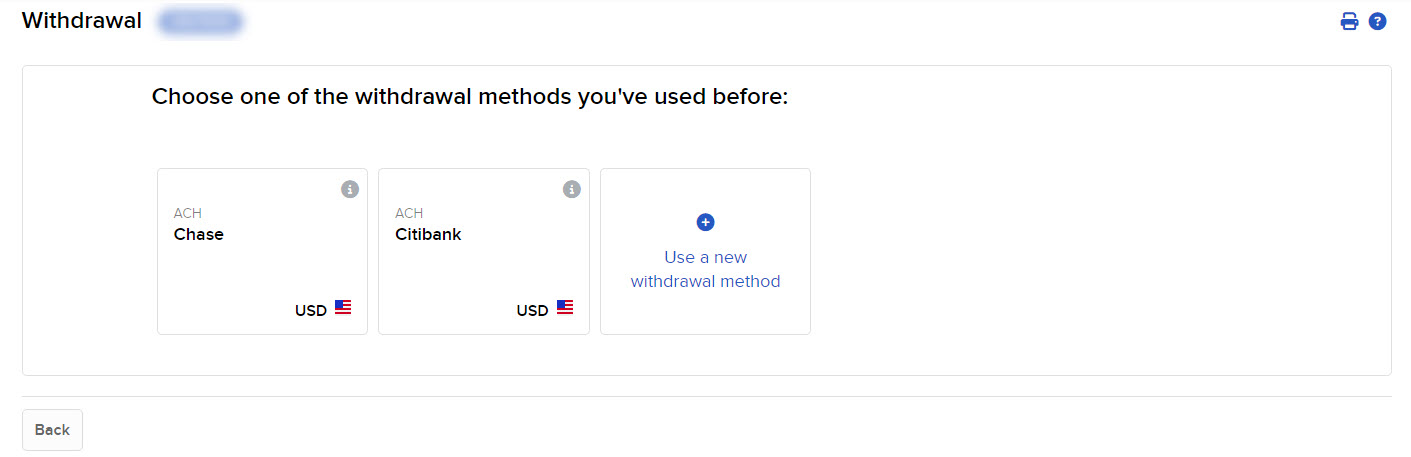
5. Select a withdrawal method
Choose a previously used withdrawal method, or select Use a new withdrawal method to set up a new one.
If you select Use a new withdrawal method, you will be prompted to choose from the available withdrawal types.
6. Save your bank information (optional)
You can save your bank details for future withdrawals by entering your bank information and clicking Save Bank Information.
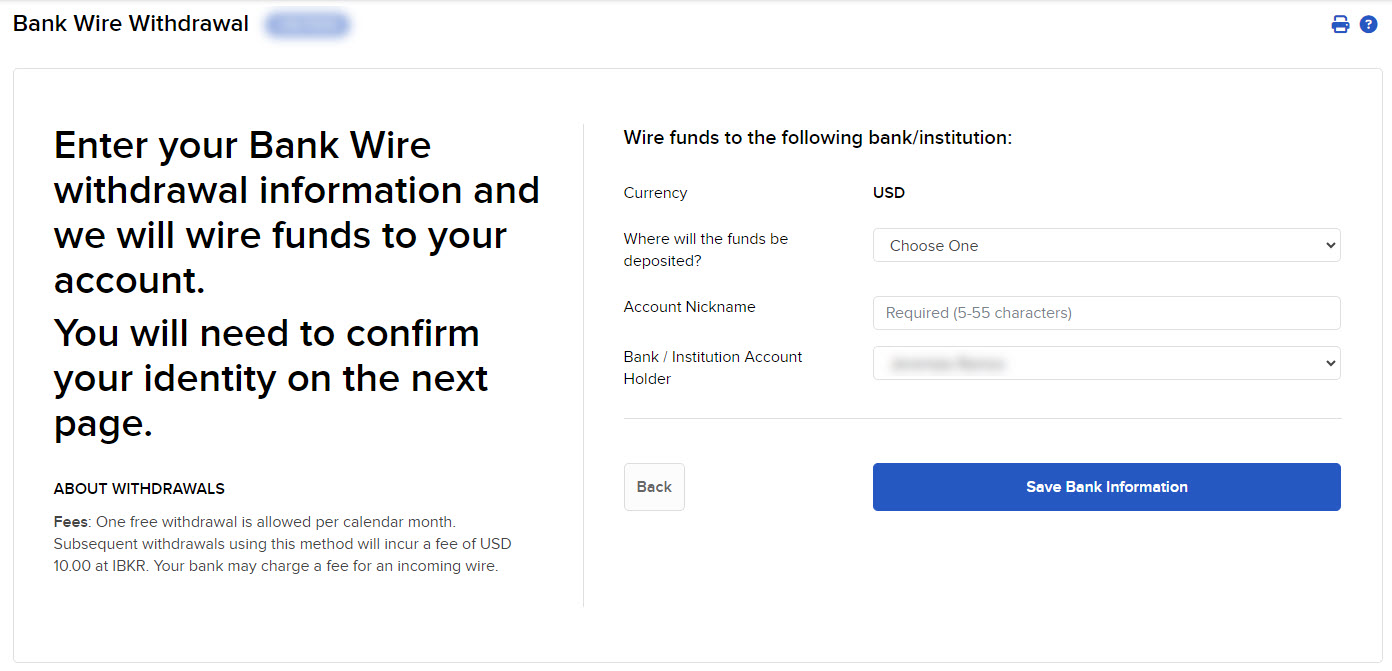
Enter your bank details and click Save Bank Information to reuse them in future withdrawals.
7. Select the destination bank
In the Where will the funds be deposited? drop-down menu, select the appropriate bank from the list.
8. Enter the withdrawal amount
In the Transaction Information section, type the amount you wish to withdraw in the Withdrawal Amount field.
9. Confirm your identity
When prompted, confirm your identity by entering your login credentials.
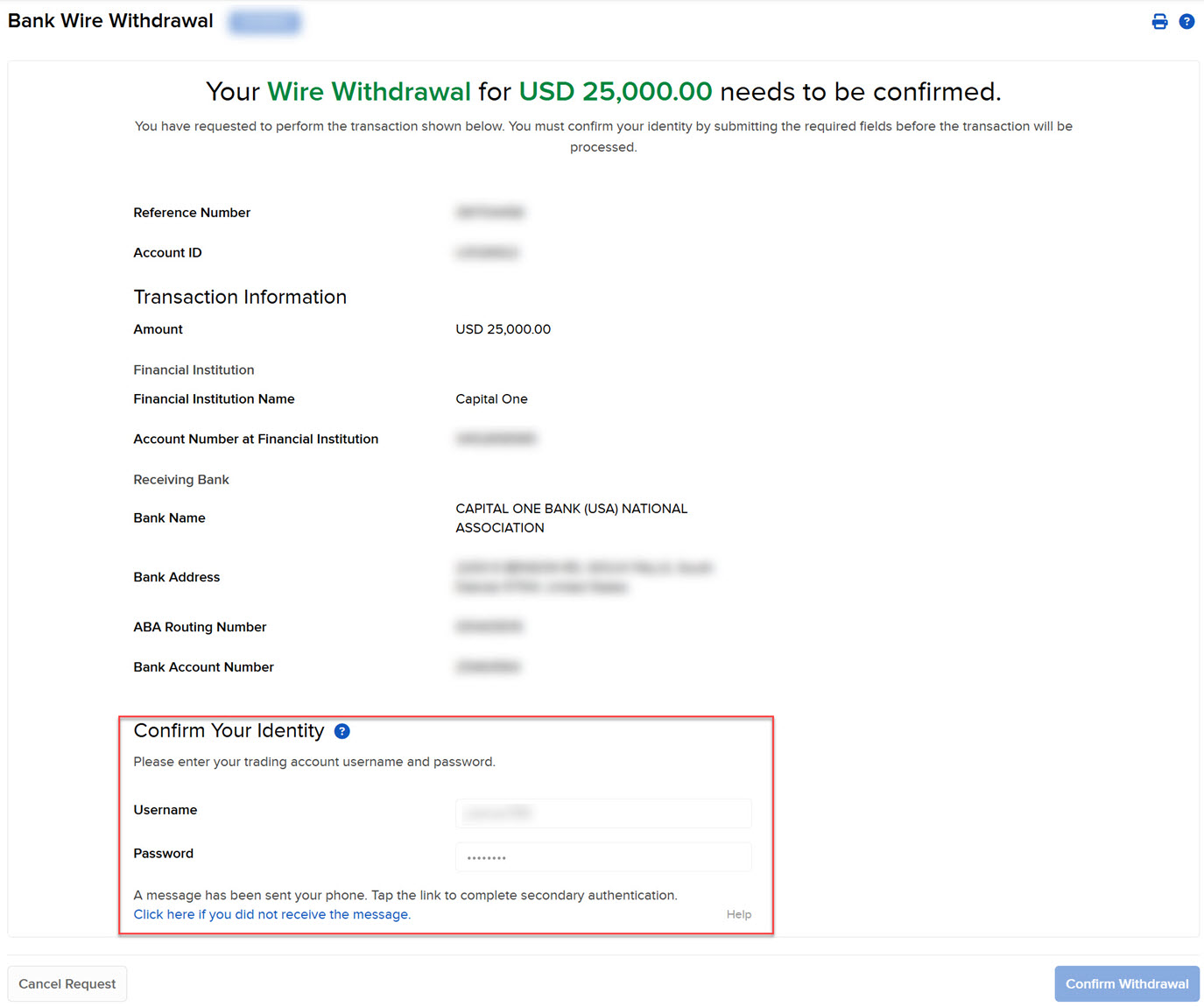
Enter your username and password to confirm your identity before the withdrawal is processed.
10. Submit or cancel
Click Create Withdrawal to submit your withdrawal request, or Back to cancel the transaction.
11. View the result
Click View Transaction History to check the status of your withdrawal, or Start Another Transfer to initiate another fund transfer.